Showing posts with label technology. Show all posts

Saturday, May 29, 2021

That's a Wrap


... and that's a wrap.  My 2020-2021 school year is over.  My annual tradition of decompressing at the end of the year as summer begins by reflecting upon and blogging the lessons I've learned is still exerting some pull over me because, well, habits are habits, but goodness... this year has been a doozie. 

I started with twelve "all mine" remote-learning kindergarteners at the beginning of the year, and by the end, finished with seven original Dream Teamers and two mid-year transfers.  In total, I taught forty-eight students, several of them repeat visitors due to multiple exposures to COVID-19.  Because my exposure when Dear Husband tested positive occurred over winter break, my absences from work were limited. The subs I had on those days were brave, turning themselves into instructional hosts akin to Mr. Rogers on the television screen, though I suspect they were glad that I didn't ask them to put on puppet shows.  

I watched colleagues who taught students on-site at the ends of two long hallways empty their classrooms of furniture and engineer six feet of distance between their students while trying to remember to create and maintain distance between themselves and their learners, the absolute opposite of what any of us were trained or wanted to do.  I witnessed grade-level planning happening with team members standing in their classroom doorways, shouting through masks to one another as they collaborated. I saw the encouragement of confidentiality when colleagues tested positive and/or became ill and for the first time in my career, read not only care and concern in the eyes of teachers and staff when they discovered a colleague would be out of the building for two weeks, but fear. Was I exposed to COVID?  How close were we when we walked to the gym/staff lounge to put our lunches in the refrigerator?  I unsuccessfully tried to calm my anxiety every time a staff member forgot to wear a mask, or chose to mis-wear one because their personal discomfort (or belief that COVID19 was a global hoax) was an inconvenience against which they decided to semi-passively rail.  My need for self-care grew exponentially each time my self-preservation button was casually brushed up against. 

I signed many more sympathy cards than in years past as colleagues lost their parents and grandparents.

I eventually conceded to the utilization of a predictable daily routine, complete with scripted Google Slides that were created a week in advance.  Spontaneity just didn't work for families who needed and wanted to rely upon a school schedule that could mesh with their home routine. My remote-learning colleague was wonderful in helping to plan our students' lessons, activities and special crafts a month in advance, and we kept our communication with our families as consistent as possible. We did what we felt was best for both our students and our guest kindergarteners, and I believe our families could feel the care that we put into teaching.  Administrators didn't police us much, but I can't say whether that was by design or simply because we weren't starting any fires.  Having the autonomy to create our own learning program is an experience I doubt we'll ever forget. 

Tech being glitchy doesn't instill panic in me any longer.  Sometimes it's the platform or website that is having an issue.  Sometimes you just have to close out all the apps, shut down the iPad, and let it rest for a few minutes before powering it up again.  After the ninth new update to the operating system installs itself, the day continues, and so does the learning... in most cases.  I'm glad I was able to create digital resources not only for my students but for colleagues in the district who were able to use them in their on-site classrooms, and I will be forever grateful for all of the sharing teacher communities on social media who donated their own creations in kind.  My device and equipment list for the year included: 
  • Laptop; laptop stand (purchased by me)
  • iPads: teacher (it was my second screen for Zoom, displaying my students' faces, and often their parents' faces and backsides, with regular appearances from siblings, pets and stuffed animals) and student (so I could model all apps and step in as an initial help desk of sorts)
  • iPencil: I fiddled with it once but never used it again, preferring to model writing and drawing using our regular writing tools 
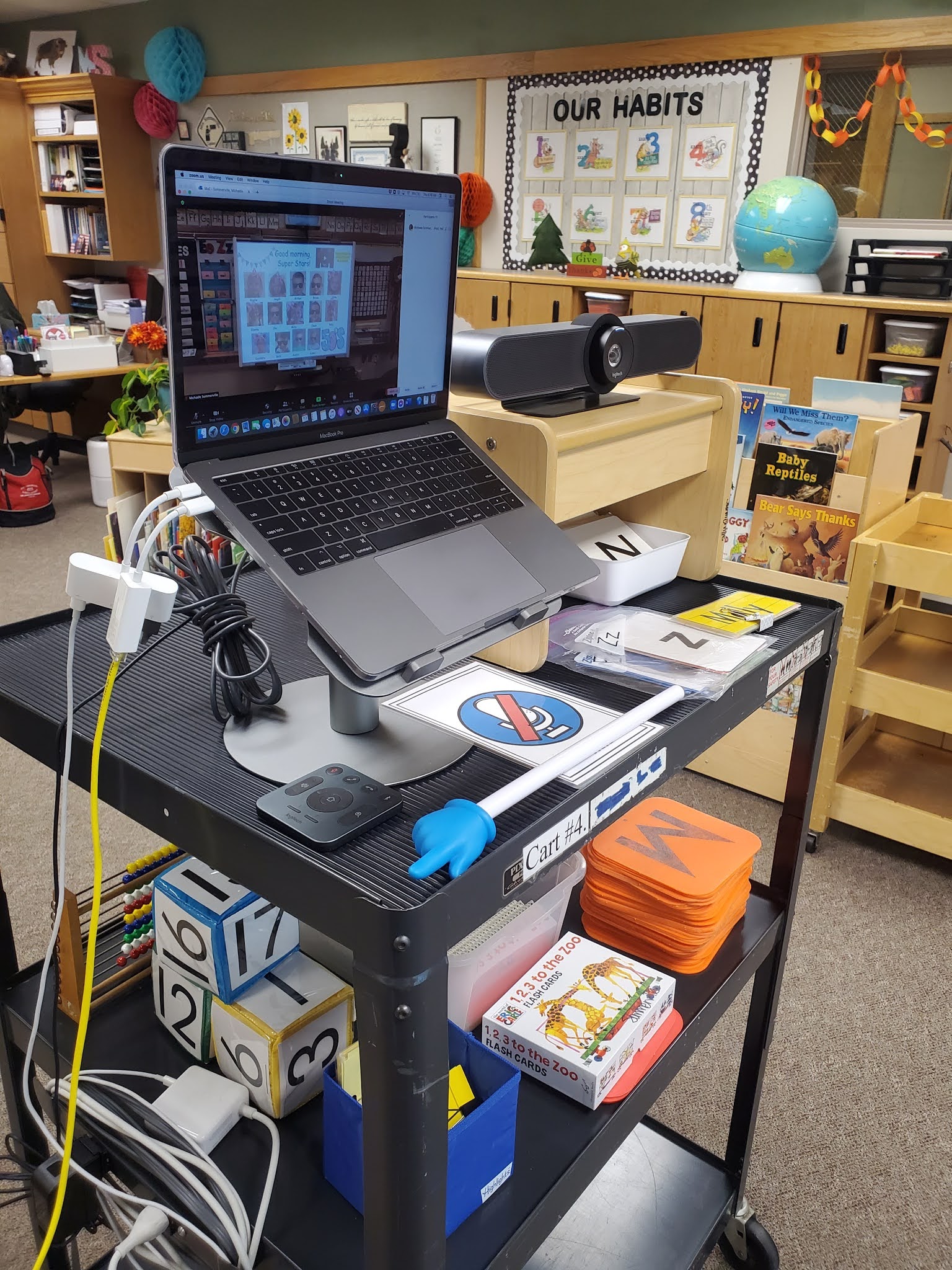
  • Logitech camera, gifted by admin at the Board Office: the extra camera made it possible for me to share other spaces in our classroom daily without giving everyone motion-sickness by carrying my laptop to a new location.  It could pan out to include a view of an entire wall of anchor charts, and zoom in close easily with its handy dandy little remote.  My students were able to see and experience storytime with big books and art lessons modeled by me using a regular kindergarten painting easel. I went from a laptop on a milk crate to a command station pretty quickly:

  • Document camera: for displaying books, worksheets, etc. onto the....
  • SMARTBoard: My daily instructional slides appeared as large as a bulletin board.  Students viewed the board through my laptop and Logitech cameras.  Video content was screen-shared from my laptop via Zoom.

  • Microphone: speakers located in multiple ceiling tiles kept me from having to use my "teacher voice" in locations that weren't within the immediate vicinity of my laptop. 
  • Additional camera (purchased by me) for a desktop computer that I used from my teacher's desk when my laptop was being repaired. 
I know that other remote teachers used fewer devices and equipment than I did, but I just couldn't bring myself to teach in a sitting position all day.  Having my laptop and Logitech camera on an old media cart in front of the SMARTBoard made it possible for me to stand, change locations in the classroom, and share more of our learning environment with my students.

This year became a standalone teaching experience for me, stretching from last March when the stay-at-home order was first issued through yesterday when I signed off of Zoom for the last time with my Super Stars and their families.  Despite some semblance of normalcy provided by curriculum, routine and even decor, I'll admit to having to look through photographs to remember a lot of the finer details of what happened this year.  So much has to be brain-dumped when you're literally trying to stay alive while having to appear professional as you're doing it.  My Super Star Families were gracious, supportive, and (almost all) on board with what Zoom Kindergarten had to be, and my decision to be a remote teacher for my twenty-fifth year in education and their decision to have their children be remote learners for their first year of school were the right ones for us.  I will always appreciate my district providing the remote-learning option that helped to support the health and safety of me, my family, and my Super Stars and their families. 

Even during a pandemic, it takes a village. 


Friday, August 28, 2020

Student iPad View of Google Classroom: Kindergarten Edition

There's lots of preparation for the upcoming school year going on right now, and technology is at the forefront for me as one of my district's remote learning teachers.  Nothing beats being able to see content the way my Super Stars and their families will, so I appreciate that I was able to obtain an iPad formatted for kindergarteners prior to the first day of instruction.

I have no idea how other grade levels are rolling out their digital devices for students, but I thought it might be helpful to simply show what I've seen as I've navigated to Google Classroom as a mock kindergarten student using a student iPad.  Here... we... go!

I powered up the device, held it upright in the portrait position (not landscape) and found the Google Classroom icon:


After clicking on it, this screen appeared:


I made sure to leave the "Sign up for emails..." box UNCHECKED, tapped the "Get Started" rectangle and logged in using my mock-student Gmail credentials, not an email address issued by the district.  I was taken immediately to the Google Classroom I created (as a teacher) and had invited myself to join via email (as a student) with a "join code." This is the first step that parents will have to help students with.

It's too bad that the header/banner is grayed-out; I'm not entirely sure what the purpose might be behind the platform altering the image from how I created it.  Notice that you can see the photo that is linked to the Gmail account I'm using as a student in the upper right corner on this screen. I don't know what will appear in this space for students accessing Classroom with a district-provided account.

There are no buttons or tabs along the bottom of the screen except for a lone plus sign:


The plus sign in the bottom right corner provides a pop-up where "Join class" and "Create class" are options.  A student will need a class "join code" from any other teacher who invites him/her/them.  Tapping "Create class" produces another pop-up, though I'm unsure if I'm seeing it because I'm a mock student and not an actual student utilizing a district-provided account.  "Join class" would be the only option our students need.


Three little dots appear in the upper right corner of the header/banner:


Tapping the three dots produces a button prompt at the bottom of the screen that offers to "unenroll" you:


If a student clicks on this button accidentally (or not-so-accidentally), a pop-up message with links to either "cancel" or proceed with the choice to "unenroll" appears:


Talk about the OPPOSITE of "handy dandy" when it comes to four, five, and six-year-olds.  I didn't unenroll to see what would happen.  My guess would be that I, as a student, would need to be invited back to the Classroom with another join link provided by my teacher.  I don't know if the classwork I completed prior to unenrolling would be saved, or retrievable.

Moving on...

Tapping the class' name/title "Kindergarten Remote Learning" that appears within the grayed-out header/banner took me to a very similar looking screen, though this time neither my Gmail photograph nor the plus sign appeared while buttons for "Stream," "Classwork" and "People" did at the bottom.  This is the Google Classroom home page:


The message "No posts yet, but check back soon" indicates that I (as the teacher) haven't yet posted messages, announcements, photos, or assignments within Classroom.  It also indicates that I (as a student), haven't commented or shared content on this page, either. Posts by teachers and students will appear on this screen unless teachers adjust the permission settings which will prevent them from being published/shared.  This home or "stream" page can become congested rather quickly, full of text that many kindergarteners themselves won't be able to read. I don't plan on posting much here, and I will be toggling off the appropriate settings button so that every activity I assign won't appear here in an overwhelming list.  Perhaps this page is where I can post a daily learning plan as an announcement instead, and eventually, with lots of guidance and practice, students can respond to content, but my brain isn't ready to tackle that particular adventure just yet.

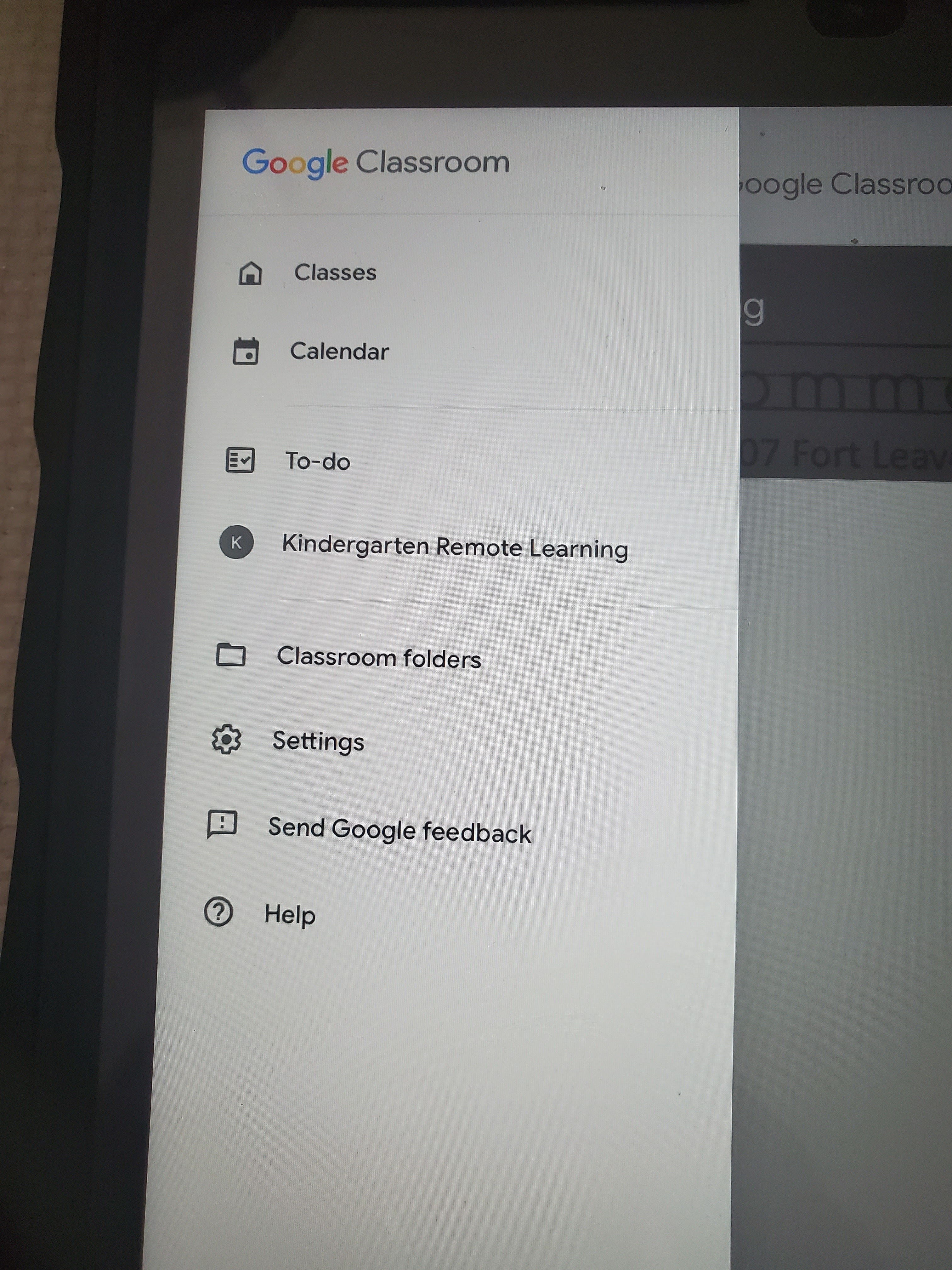
Clicking on the three horizontal bars in the upper left corner brings up this submenu:


Within this submenu, tapping: 

"Classes" takes me right back to my Kindergarten Remote Learning class.  If I'm enrolled in other classes, their headers/banners would show up so I could select the one I wanted to access.

"Calendar" produces this iTunes and web browser rabbit hole that kindergarteners don't need to fiddle with:


"To-do" takes students to the To-do page, where buttons/tabs appear at the top for work that is "Assigned," "Missing," and "Done." I haven't yet assigned grades to the activities I completed as a student, so I don't know if a "grades" column will be displayed for students.  Teeny tiny arrow up/arrow down buttons to the right of the list allow you to expand or collapse the categories that appear (assignments, or "this week," "next week," or "later:")


"Kindergarten Remote Learning," the name of my Classroom, takes me right back to the main page where the "Stream," "Classwork" and "People" buttons appear at the bottom. 


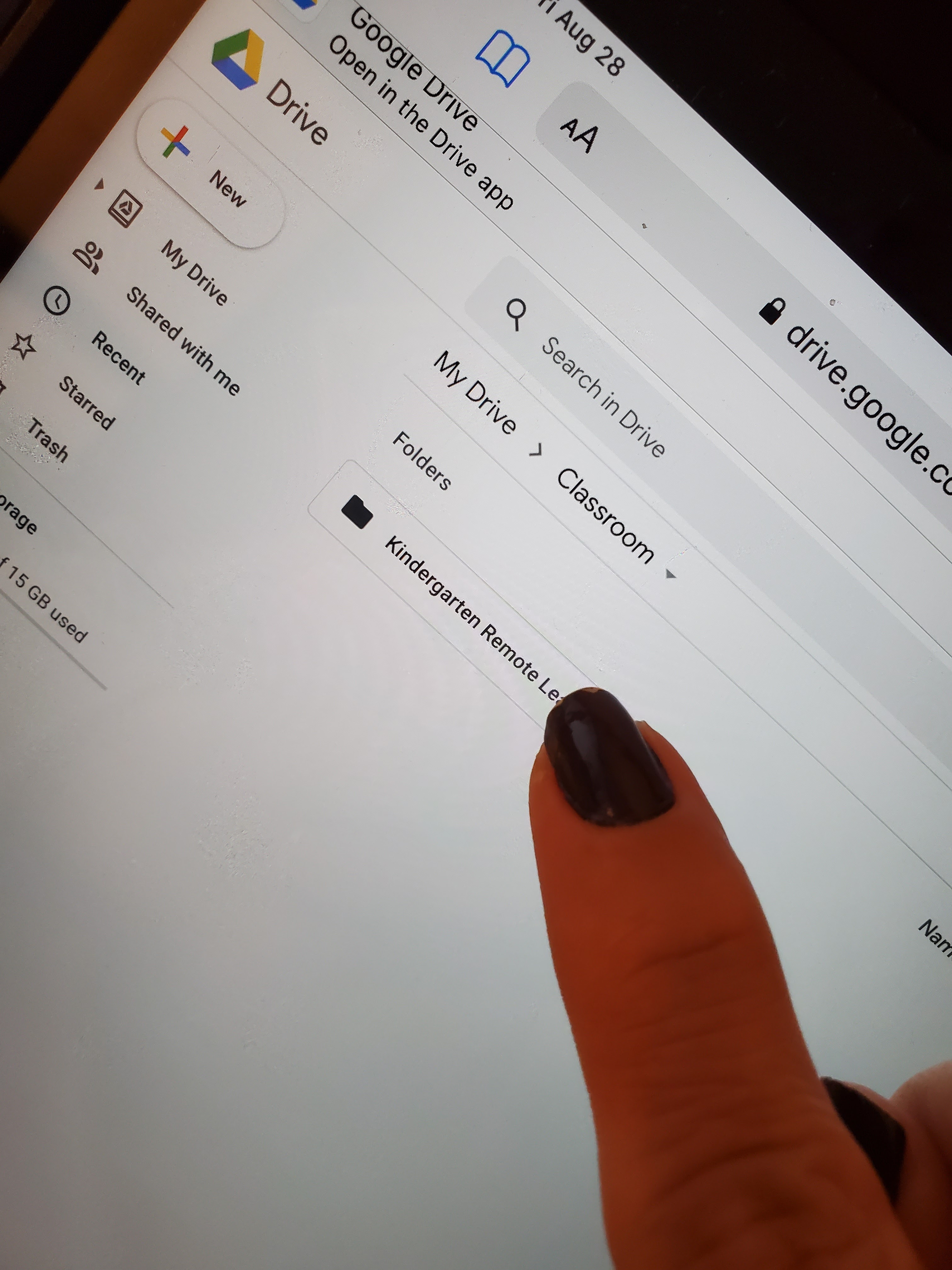
"Classroom folders" takes a student to their Google Drive via a web browser, where s/he/they will see the class folder.  Clicking on the titled folder opens it and displays all of the assignments/items shared by the teacher.  After only a few days, I imagine this can become a bit crazy to navigate, though the icons are easy to view.  I don't know that I'd ever tell a kindergartener to go into their Google Drive and start hunting and pecking, and I'm not sure parents will be able to avoid being overwhelmed by traveling along this route, either. Using the back arrows at the top of the screen only allows navigation within the browser, so students will have to click the "home" button on the iPad to leave the browser and then find the app icon to return to Google Classroom.


If subfolders aren't created and organized within the Classroom folder (my Classroom is named "Kindergarten Remote Learning"), the photo below shows what students and families will see. I have spent some time trying to create subfolders as a student within my Classroom folder on the iPad this weekend and frankly, I don't recommend it.  Perhaps older students can organize their Drives in a logical manner and with the help of their teachers, but kindergarten students and families may need to be told to simply ignore the Classroom Folder link in the Classroom submenu. Just view assignments using the To-do tab, and avoid the Drive. 


Everything pops up, and this screen is only one day's worth of activities that I've assigned. Remember:  students don't have to open up their Google Classroom's folder via Google Drive in order to access their assignments.  They can simply click on the "To-do" button in the submenu that appears on the Google Classroom homepage via the three horizontal bars in the upper left corner. I just wanted to show you the Google Drive rabbit hole that they (and parents) will encounter if they tap on the "Classroom folder" link in the Classroom's submenu.  

"Settings" opens up options such as "About" (the app's legalese), "Account Settings" (the Google user's info, sign-in and security, personal info/email and account preferences), "Default apps" that includes "get" buttons for other browsers and recommendations for other apps, "Report crashes," "Notifications," and "Google Usage ID," none of which I'd want kindergarteners fiddling with.


DO familiarize yourself with the "Account Settings" link though, because there's a "Remove account from this device" prompt at the bottom of the screen:


Tapping on the prompt produces this pop-up:


Goodness gracious.


Student access to settings and sending Google feedback aren't necessary for kindergarten.  Their parents will be the ones accessing the "Help" button, but there's quite a bit of info within that particular submenu that isn't applicable to parents or students, such as "Grade and give feedback," "Communicate with guardians," "G Suite administrators" and other "teachers only" information.  Goodness, the rabbit holes. 

Finally, when we're back on the Classroom homepage, where "Stream," "Classwork" and "People" buttons appear at the bottom, the "People" tab brings up a list of teachers and I'm assuming other classmates.  When I click on my (teacher) name, no pop-up window appears, so it doesn't seem to be a communication link.


Whew.

As a reminder, I held the student iPad upright, in the portrait position for this navigation tour.  Holding the device in the landscape position simply shortens and widens the screen display.  No button, tab, or submenu locations change or have to be tracked down in some other place. 


Now that you've endured eye-strain and my overuse of "rabbit holes," "goodness gracious," and "fiddling," I'll save showing you how a Google Slide activity assigned in Classroom accessed by students via an iPad may confuse them with a preview of that activity in PDF form (that is also editable and submittable) rather than going directly into Slides itself for another blogpost.

Okie dokie, artichoke-y?

Saturday, April 19, 2008

One of Those "When I Was Your Age..." Moments

I came home from grocery shopping this afternoon to find my daughter watching Jurassic Park on cable. There's not much in the movie that strikes her as....remarkable, probably due to all of the great special-effects in movies she's seen over the years.

My memory of seeing Jurassic Park for the first time... let's just say, it was a thoroughly emotional experience. My daughter's godparents and my mother joined me at the movie theater (my mother drove 100 miles one way, and afterward 100 miles back to see it), and the theater was packed. When the audience saw the first dinosaur, there was a collective (and loud) gasp in the dimmed room, and then many audience members, male and female, began to cry. No, not out of fear (though those raptors certainly scared the heck out of us all later in the film), but because it was the first time we'd ever seen a dinosaur, apparently living, breathing, eating, and chasing after its prey.

Yep, we went from this (and even cheesier dinosaur animation/claymation/stop-motion):


to this:


Our girl is a smart cookie- not ONCE did she say "Wow Mom, you're OLD," though I'm sure she *thought* it!

Thursday, October 11, 2007

"T" is for Tools, "T" is for Technology

Larry Felazzo's post at "In Practice" does a good job of reassuring me that experiential, cultural and behavioral diversities exist everywhere, and that standardizing the use of technology is probably an impossible task. It's one that finds me torn between several ideologies when dealing with the responsibility of preparing my kindergarten students for their future school and learning adventures.

My students come to my classroom with vastly different prior schema. Some are used to all sorts of learning tools, Leap Pad, computers, cameras, dvr/dvd machines, mp3 players, calculators, etc., some have only seen PC's and are surprised to find Macs as a learning center in my room, and still others don't have a computer in their home, much less a dvd player.

abacus


While kindergarten tends to be left out of the heavy debates regarding curriculum on inservice days, I'm still responsible for getting all of my students groomed for the first grade. When one first grade teacher is having students author short stories and use educational resources online while the other teacher merely sees computer use as a reward (and gives out "reward time" very sparingly) most of what I've tried to do gets undone before my students ever make it to the second or third grades. With each successive grade, the use of technology in education grows exponentially. Finding teachers themselves all falling within very disparate comfort levels when it comes to the technology that may be available to them and their students, I often find myself trying to anticipate other teachers' shortcomings when setting up learning centers/experiences for five and six year olds. "If **I** can give them the exposure, maybe my students won't be impacted too terribly while they tread water in the next grade." It's a horrible thought.
calcularo

My classroom is for exposure, exposure, exposure, and exploration/development, exploration/development, exploration/development. So no matter the prior schema, all students can start where they need to, and go where their interests lead them. They receive gentle prodding when necessary by me, but are usually motivated to explore with their friends. I still use the overhead projector, modeling use of math tiles, coins, base ten blocks, Judy clocks, etc., but also give my students overhead transparency sheets for their artwork, so when bulletin board space doesn't allow, we can put temporary displays up and the kids feel like they are in an art gallery, their masterpieces filling the walls, larger than life!

computer

My students use calculators, headphones and dvd players, my iMacs, and printers. Microscopes, hand lenses, thermometers, microwaves, and a tabletop laminator are used by students with extra supervision. Cash registers and "dead" phones in dramatic play, hammers and screwdrivers for creative and LOUD constructions, and musical instruments round out centers filled with paints/puzzles/puppets/ and clay in my room. There aren't many first grade classrooms that carry over learning centers like these.

I understand that the older children get, the more their "exposure" occurs thanks to being able to speak and read. And I've met some teachers who believe "Why experience it when you can read about it?" With all of the curriculum that needs to be covered and tested each year, teachers need to find ways to show students concepts in a timely manner. But when students find topics of interest and don't have the time and resources to continue to explore, learn about and experience them because teachers are reluctant to stretch their own horizons, how can we feel we are truly doing our jobs? I personally don't feel the need to be "up" on every new trend or fashion that comes out of our human expression, but I do believe that students should know HOW and WHERE to safely explore their interests, utilizing all resources available, and technology is at the heart of them.

I've realized that technology isn't a passing fad or trend, but an essential element to how we live, learn and share. If we want our diverse students to communicate, demonstrate knowledge, explore concepts and curiosities, and navigate the world as safely as possible, then we as teachers must diversify our knowledge base enough to offer our students the tools they may or may not want, choose, or be required to use, be they overhead projectors, dvd players, computers, or whatever technological innovation is waiting around the next corner.

GETTING those tools of course, is another matter.

Saturday, September 08, 2007

I've been exploring...

...and here's what I found:

Bill Lucas' Studying the Creation of Kindergarten

Kindergarten Skills by Shallowford Falls (I'm sending this one to my sister since she's homeschooling my nephew now)

Internet for Classrooms (just some more help as our technology in early childhood education/teaching practices continues to evolve along with everything else!)

The Special K Kindergarten Page

And finally, for Jan Brett fans everywhere (check out her new calendar!)

It's time for another cup of coffee.


precious